Prepare the safe path
- Confirm that the browser, operating system, DNS client, router, or local forwarder supports a custom DNS-over-HTTPS URL.
- Free currently includes one device and one protection profile. Paid self-service upgrades are not open yet.
1 Open Devices and choose Add device
Enter a descriptive device name, choose the closest platform, and select the protection profile. The platform choice changes the setup guidance; it does not weaken or strengthen the endpoint itself.
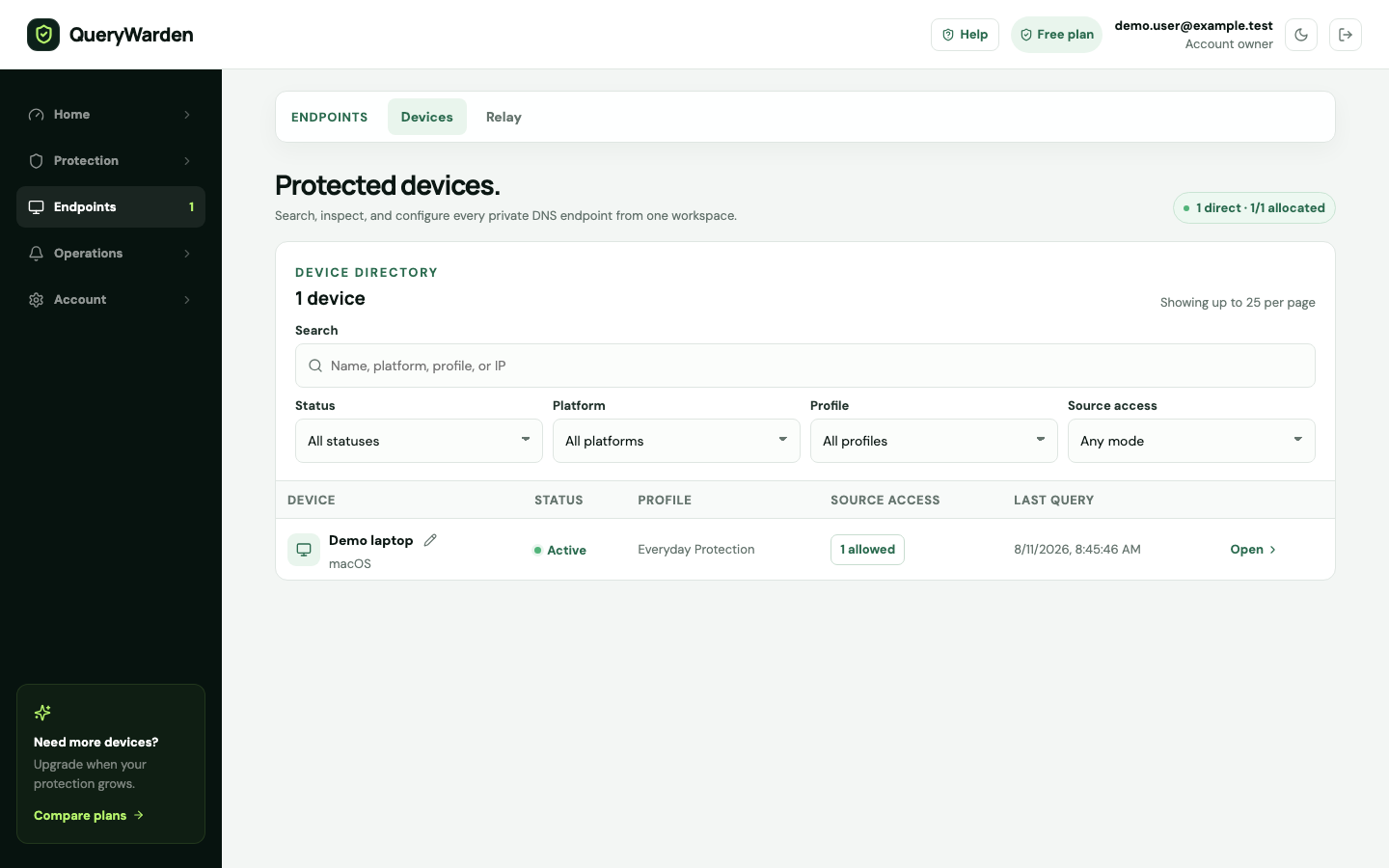
Use the Devices workspace to add, filter, inspect, reassign, rotate, or remove private endpoints. 2 Create the encrypted endpoint
After provisioning, QueryWarden opens the selected-device setup panel. Copy the complete HTTPS endpoint or use the platform-specific download or QR option where available. Do not shorten, publish, or share the endpoint.
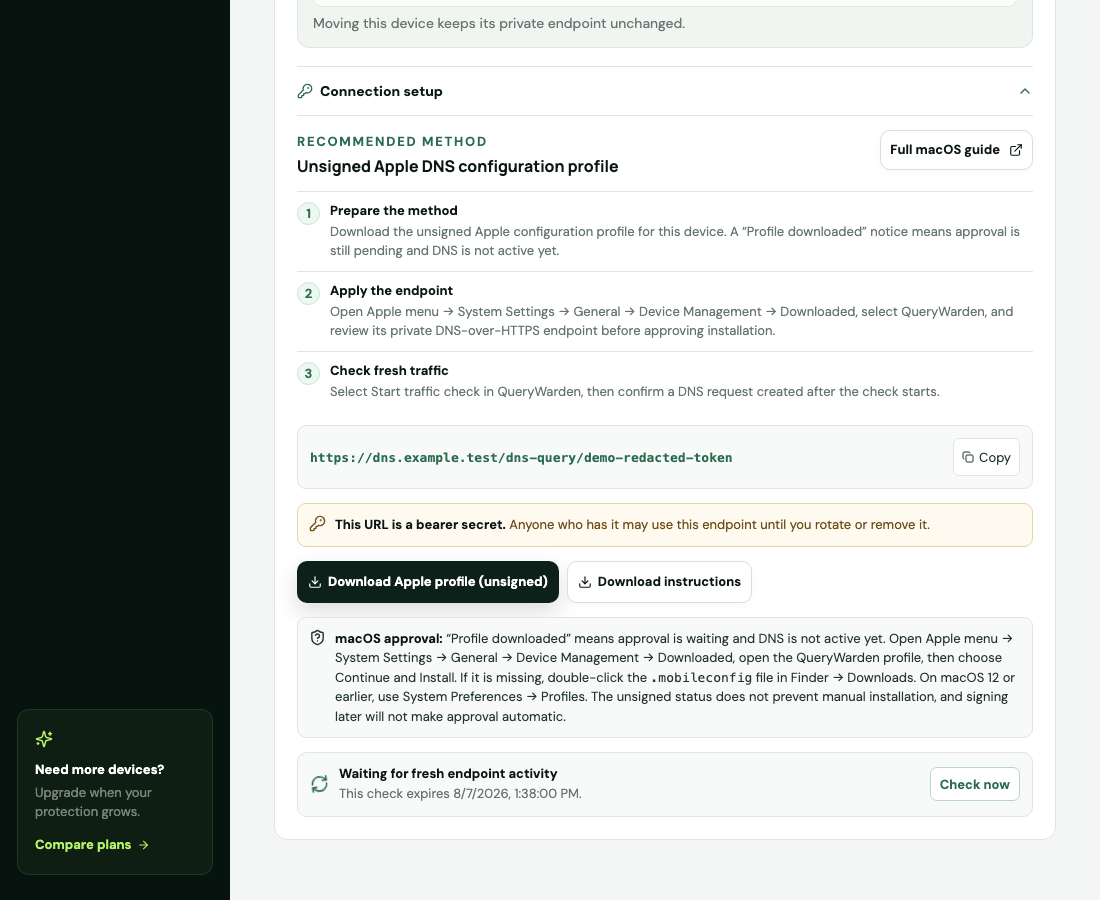
Connection setup provides platform guidance and verifies traffic recorded after the check begins. 3 Install it in a compatible client
Paste the URL into a client that explicitly accepts a custom DoH provider. Apple devices can use the unsigned configuration profile supplied by QueryWarden. Android system Private DNS is not the same setting because it expects a DNS-over-TLS hostname rather than this DoH URL.
4 Verify new traffic
Select Start traffic check in QueryWarden, then open a new website or generate a DNS request on the device. The check succeeds only when QueryWarden records a request after it began.
Confirm the result
The device reports recent activity and its DNS requests begin appearing in Overview and Query log according to the profile privacy setting.
Protect the account while you work
- Treat the private endpoint as a secret. Rotate it immediately if it appears in a public message, screenshot, repository, or ticket.
- Source-IP restrictions can prevent connection after a home, mobile, or office public IP changes.
When the expected result does not appear
The client accepts only a hostname, not a URL.
That field is likely for DNS-over-TLS, not DoH. Use a compatible DoH client or another supported deployment method.
The device is created but shows Not connected.
Confirm the exact endpoint was installed, select Start traffic check, generate a fresh DNS request, and check source-IP access.
The plan has no available slot.
Remove an unused device or contact QueryWarden about an appropriate manually managed plan. Do not reuse one device endpoint publicly across unrelated users.