Prepare the safe path
- Install the selected device endpoint in a compatible client.
- Make sure the device can reach the internet and that source-IP access permits its current public address.
1 Open the correct selected device
Use Devices, select the intended device, and expand Connection setup. Verify that the displayed platform and profile match the device you are testing.
2 Select Start traffic check
Begin the check before generating the test request. QueryWarden records the check start time and waits for newer activity from that endpoint.
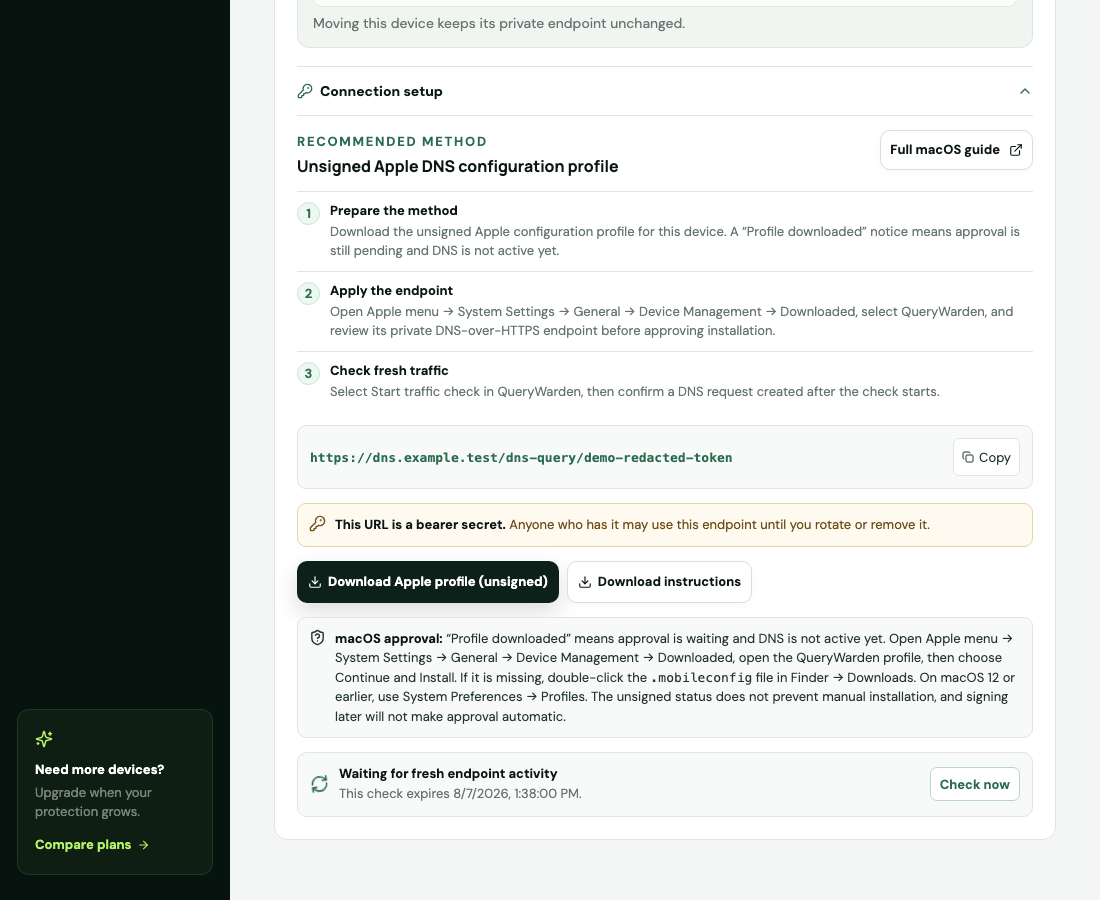
Connection setup provides platform guidance and verifies traffic recorded after the check begins. 3 Generate a new DNS lookup
Open a website the device has not recently visited, restart the relevant app, or use a DNS lookup tool configured through the same client. Browser and operating-system caches can prevent a new resolver request.
4 Review the result
A successful result updates the verification state and recent device activity. If it remains pending, use Query log and the troubleshooting checks below rather than repeatedly creating endpoints.
Confirm the result
The dashboard confirms traffic observed after verification began and the device state becomes active when activity is recent.
Protect the account while you work
- Verification confirms endpoint traffic, not the identity or physical ownership of the device.
- Do not send the endpoint to support as proof; send timestamps and sanitized error details instead.
When the expected result does not appear
The check stays pending.
Try a genuinely new domain, confirm the client is not using fallback, and review source-IP access.
Another device appears active.
Confirm the correct endpoint was installed on each device. Rotate any endpoint that may have been copied to the wrong place.
The query log is intentionally disabled.
Setup activity can still establish endpoint use, but domain-level history may be absent according to the profile privacy setting.